Installing an Expert Advisor (EA) on a Forex VPS can dramatically improve trading efficiency. This involves accessing the VPS, uploading the EA, and configuring it within MetaTrader. In this comprehensive guide, you will learn step-by-step how to install EA on Forex VPS, enhancing automation and minimizing downtime.
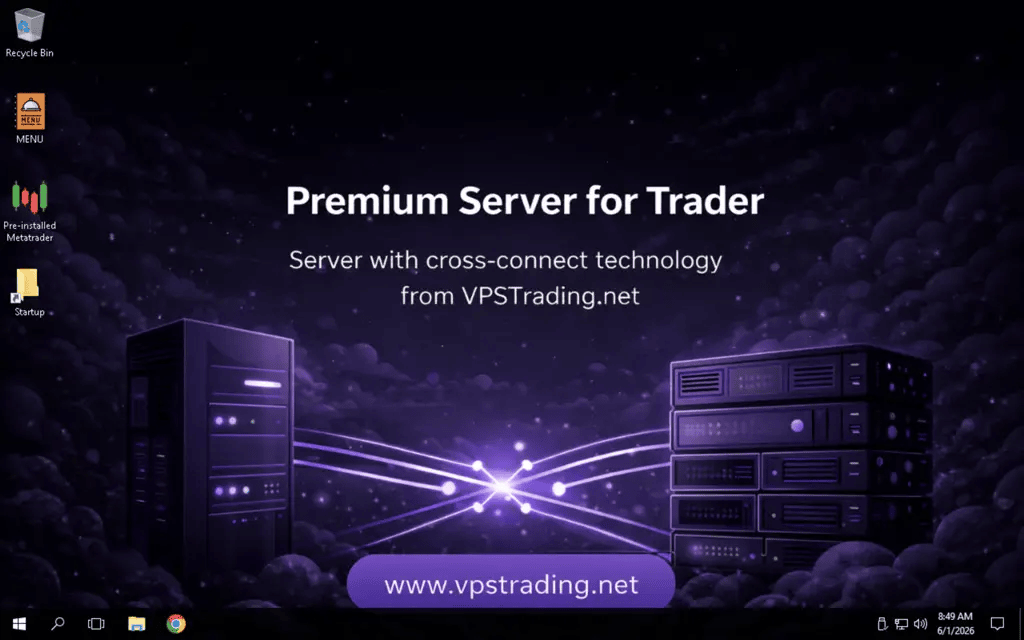
Why Use a Forex VPS for Your EA?
Trading with Forex Expert Advisors requires an environment that offers uninterrupted connectivity and low latency. A Forex VPS provider must provides:
- 24/7 operation: Keep your EA running continuously without interruption.
- Lower latency: Faster order execution compared to personal computers, reducing slippage.
- Remote accessibility: Manage and monitor your trading remotely from anywhere.
- Trading Edge features: Alerts and notifications to stay informed on trading activities.
The transition from local systems to a VPS platform ensures robust performance, essential for serious trading.
Prerequisites for Installing an EA on Forex VPS
Choosing the Right VPS
Not all VPS providers offer the same level of service. Consider these factors:
– Reliability: Opt for providers with excellent uptime records.
– Latency: Choose a server geographically close to your broker’s data center.
– Resources: Ensure sufficient RAM and CPU power to handle MetaTrader and multiple EAs.
– Sistem latency optimazion: Choose a provider that specializes in developing trading infrastructure not just a generic Windows VPS marketed as a Forex VPS.
Preparing Necessary Tools Before Install EA on Forex VPS
Before starting, make sure you have:
- VPS login credentials.
- The MetaTrader platform installed on the VPS.
- The EA file, usually with a .ex4 or .mq4 extension.
With these tools ready, you can proceed to the installation process smoothly.
Step-by-Step Install EA on Forex VPS
1. Access Your VPS
Begin by logging into your VPS using Remote Desktop Protocol (RDP) if you’re on Windows:
- Open the Remote Desktop app on your computer.
- Enter your VPS IP address and connect using your login credentials.
- Once connected, you will have access to the VPS desktop environment.
2. Install or Open MetaTrader
If MetaTrader is not already installed on your VPS, follow these steps:
- Download the MetaTrader installer from your broker’s website.
- Run the installer and follow the setup instructions.
- Launch MetaTrader after installation is complete.
3. Upload Your EA to the VPS
Transfer your EA file to the VPS:
- Use file transfer protocols like FTP or secure methods such as a cloud drive service to upload your EA file.
- Alternatively, you can email the file to an account accessible from the VPS and download it directly.
4. Install the EA on MetaTrader
After uploading the EA file, you need to place it in the MetaTrader directory:
- Copy the EA file into the ‘Experts’ folder located under ‘MQL4’.
- Restart MetaTrader to allow the platform to recognize the new EA.
5. Configure and Activate the EA
Once MetaTrader restarts:
- Open the ‘Navigator’ panel and find your EA under the ‘Expert Advisors’ section.
- Drag and drop the EA onto the desired currency chart.
- Customize settings in the pop-up window. Check ‘Allow Automated Trading’ to enable the EA.
- Click ‘OK’ to activate the EA on your selected chart.
Tips for Optimizing EA Performance on a VPS
Regular Updates
Ensure both your MetaTrader platform and EAs are updated regularly to benefit from the latest features and security improvements.
Resource Management
Monitor resource usage on your VPS. Upgrade your plan if you notice frequent slowdowns or if you intend to run multiple EAs simultaneously.
Security Measures
Enhance VPS security by:
- Changing your VPS password regularly.
- Installing antivirus software on your VPS.
- Enabling firewall protection.
These measures help prevent unauthorized access and malware infections.
FAQs on Install EA on Forex VPS
1. Can I install an EA on multiple trading platforms using a single VPS?
Yes, you can install and run multiple instances of MetaTrader on a single VPS, provided the server has sufficient resources to handle the load.
2. How can I troubleshoot if my EA isn’t working on VPS?
Check the ‘Experts’ tab in MetaTrader for error messages, ensure ‘AutoTrading’ is enabled, and verify that the EA file is placed correctly.
3. What Internet speed is suitable for running an EA on a Forex VPS?
A stable connection with at least 1 Mbps is usually sufficient. VPS providers typically offer robust bandwidth optimized for trading needs.
4. Are there any risks in running EAs unattended on a VPS?
While VPS provides automation advantages, market volatility and unforeseen technical issues can pose risks. Regular monitoring is advisable.
5. How do I update my EA on the VPS?
Replace the old EA file in the ‘Experts’ folder with the updated version, then restart MetaTrader to apply the changes.
Conclusion
Install EA on Forex VPS is straightforward but requires careful attention to details to ensure optimal performance. By following this guide, traders can leverage the power of VPS technology to enhance their trading strategy through seamless automation and reduced downtime. What’s more, adhering to security measures further safeguards your trading operations.
Ready to take your trading to the next level? Begin by selecting a reliable VPS provider and get started on enhancing your EA strategies today!